
On This Page
Table of contents
On This Page
Table of contents
Mac users rejoice!
Yes, GMMK and GMMK Pro mechanical keyboards are fully compatible with Mac. You’ll simply need to open your System Preferences and tweak 1-2 settings (the keyboard modifiers). However, the proprietary GMMK software is Windows-only.
I’ll also break down some other Mac tips & tricks for your Glorious Mechanical Keyboard!
Read on ⌨️
Related Reading:
- Do Redragon keyboards work on Mac?
- Do Ducky keyboards work on Mac?
- Do Keychron keyboards work on Mac?
- Does Anne Pro 2 work on Mac?
(yes, yes, and yes,)
Do GMMK Mechanical Keyboards Work With a Mac?
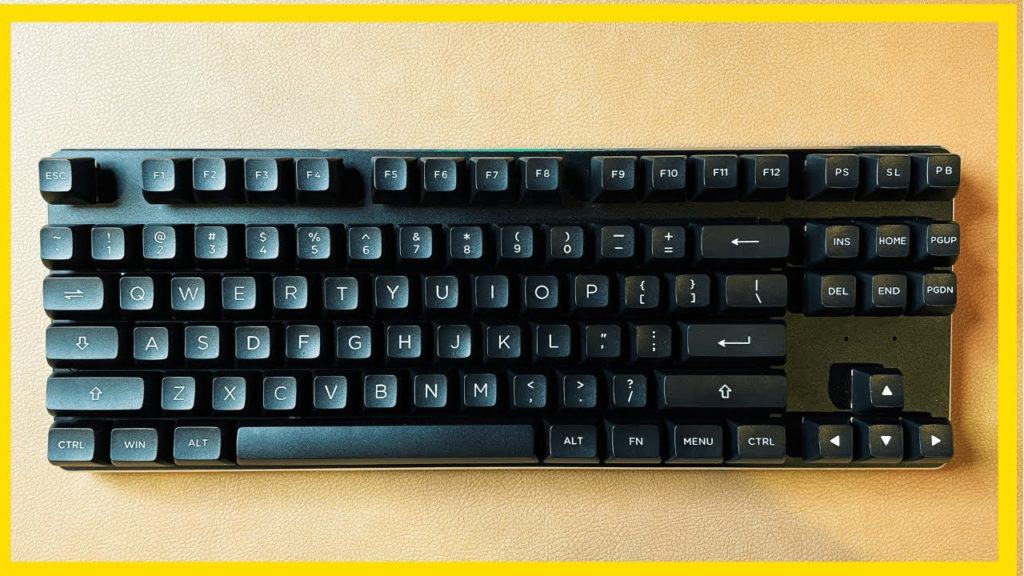 My original GMMK keyboard :)
Yes, they do! I’ll walk you through the settings just below.
However, it’s worth noting that GMMK keyboards (and most mechanical keyboards, for that matter) are technically Windows keyboards by default.
Here’s the main difference between Mac and Windows computers:
- The Modifier keys: These are your Control, Option, Windows, and Command keys. On a Windows keyboard, the modifier keys are in a different order than they are on a Mac.
- The Keycaps: This won’t affect functionality, but GMMK keyboards come with keycaps showing the Windows logo (and generally don’t come with a “Command” logo keycap
- Various Functions: On some Apple keyboards, you might have access to the Launchpad, Mission Control, or Siri features. These don’t come on GMMK keyboards
All that said, there are a few simple tweaks that can make your GMMK keyboard 99% functionality on any MacOS device.
Let’s get into it.
How to Connect a GMMK to a Mac Computer
More Tips: Can a mechanical keyboard work on a Mac? Full Setup Guide
Here are the steps:
- Plug your keyboard into your Mac
- Open System Preferences → Keyboard
- Under the “Modifier Keys…” dropdown, switch the Option and Command keys. This will put your modifier keys in the correct order for a Mac
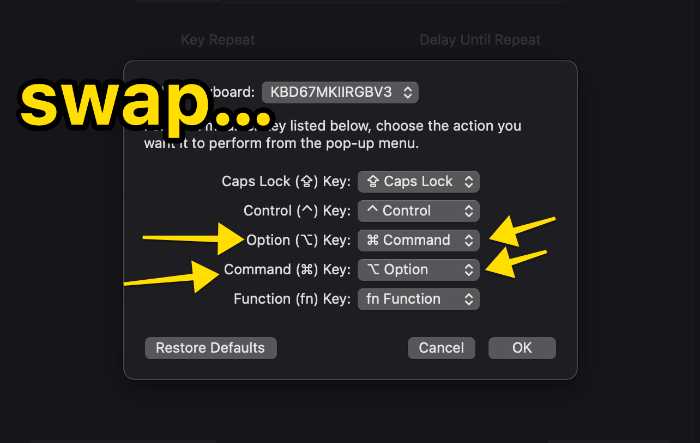
That’s it! This works for both the original GMMK keyboard or the newer GMMK Pro.
Troubleshooting tips if you experience any problems connecting or using GMMK
Mechanical Keyboard Tips for Mac Users
There are a few other tips and tricks to making the most out of your mechanical keyboard on a Mac:
- Via (only for Via-supported keyboards)
- Keyboard Maestro: A SLICK hotkey & macro tool that’s cheap and flexible!
At the time of this writing, only the GMMK Pro supports Via (and therefore QMK).
To get started, you can…
- Download and install the Via software (it’s free)
- Connect your GMMK Pro keyboard
- The software SHOULD automatically detect your keyboard, and you can start making changes immediately.
If that doesn’t work for any reason, you might head to your keyboard product page and download the specific JSON file (and then install it in Via).
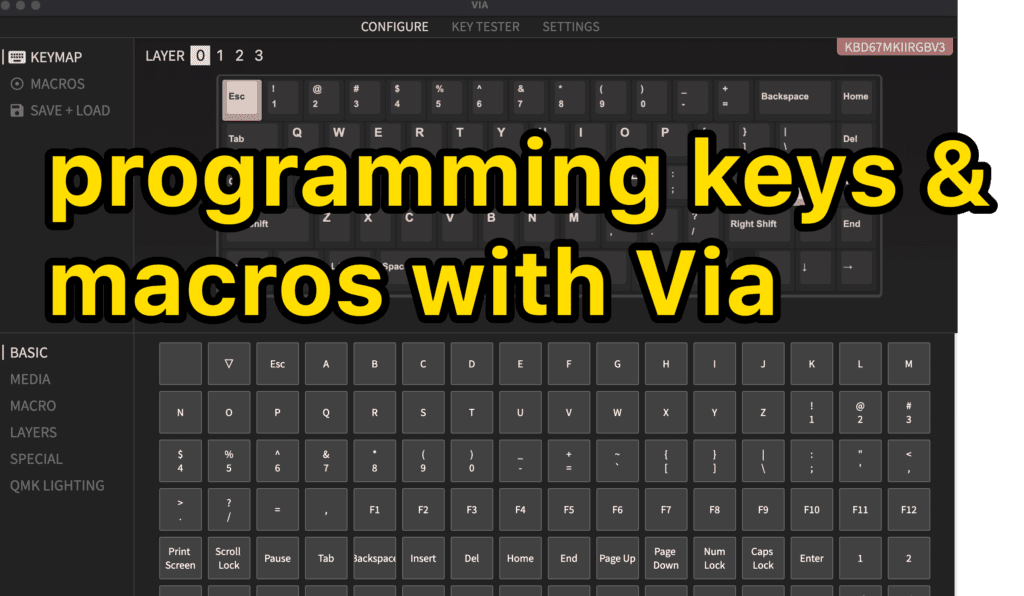
You can create and assign macros, edit key assignments, create function layers, and more!
But are you working with the original GMMK keyboard? Read on…
We recommend grabbing Keyboard Maestro!
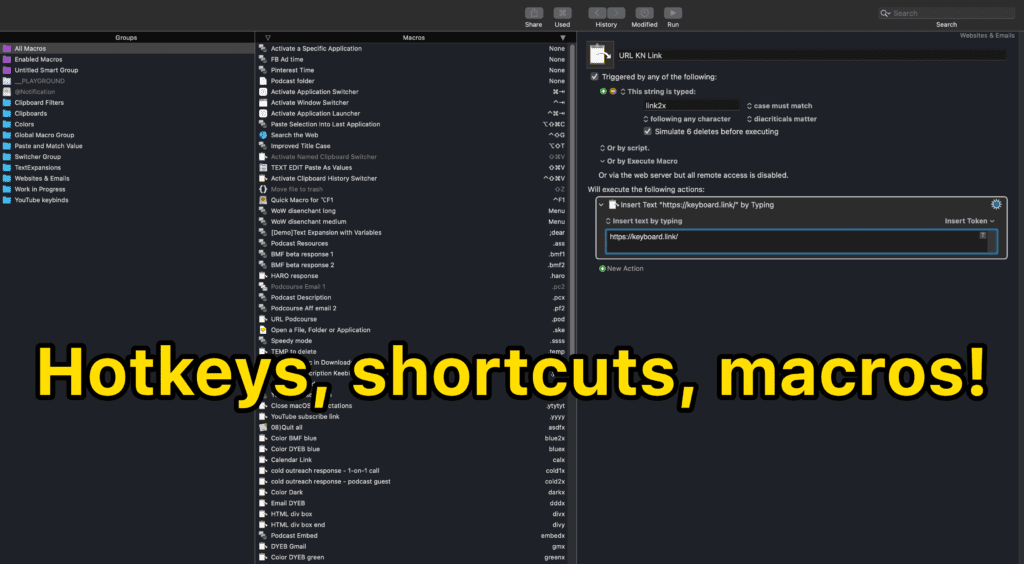
Keyboard Maestro is a GAME-CHANGER for any Mac user, really, but especially if you’re constantly switching mechanical keyboards, etc.
It works with any and all keyboards, period :)
It does cost about $30-40 (one time, not a subscription), but it’s totally worth it.
You can use Keyboard Maestro to…
- Set up custom keybinds for ANY key on your keyboard
- Create custom macros
- Change modifier keys
- SO much more
It’s an insanely powerful tool. We highly recommend it (then check out some tutorial videos on YouTube).
Other Mac-friendly keyboards
Though we love everything that GMMK puts out, there are several other keyboards that work great for Macs too!
- Keychron Keyboards (can’t go wrong with the 75% K2, or the low-profile K7)
- Anne Pro 2
- Budget Pick: RK84 (this has a Fn keybind to switch between macOS and Windows)
Want to see our full list? Read this post: The 7 Best Mechanical Keyboards for Mac.
Enjoy your Glorious keyboard!