
On This Page
Table of contents
On This Page
Table of contents
Apple user? You’re in luck.
- Yes, Keychron keyboards are fully compatible with Mac.
- In fact, they’re the #1 mechanical keyboard brand for Mac users!
- Their keyboards come stock with specific Mac functions (and related keycaps), and there’s a physical “toggle switch” on the keyboard that lets you easily swap operating systems.
The first mechanical keyboard I ever bought was a Keychron K2 (and I still love it).
- Mac
- iPhone/iPad
- Windows
- Linux
- Android
Keychrons are perfect for all of these.
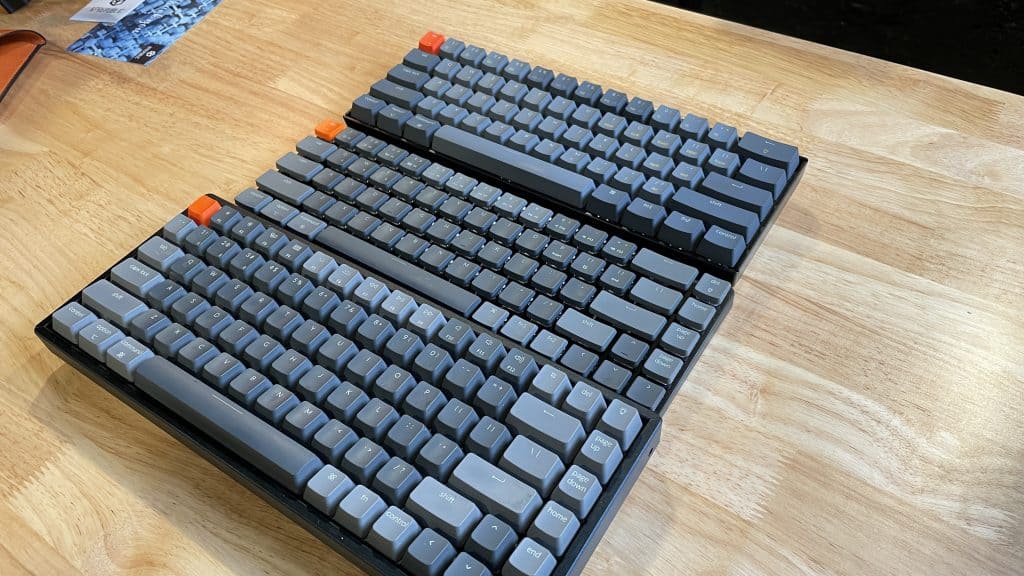 a few of my Keychrons!
Here are some additional tips to get the most out of your Keychron + Mac.
How to Connect Keychron to a Mac Computer
- Plugin (or charge) your keyboard via USB
- Set the physical toggle switch to “macOS” (depending on which Keychron you use, it’s located on the side or back of the keyboard)
- You’re good to go!
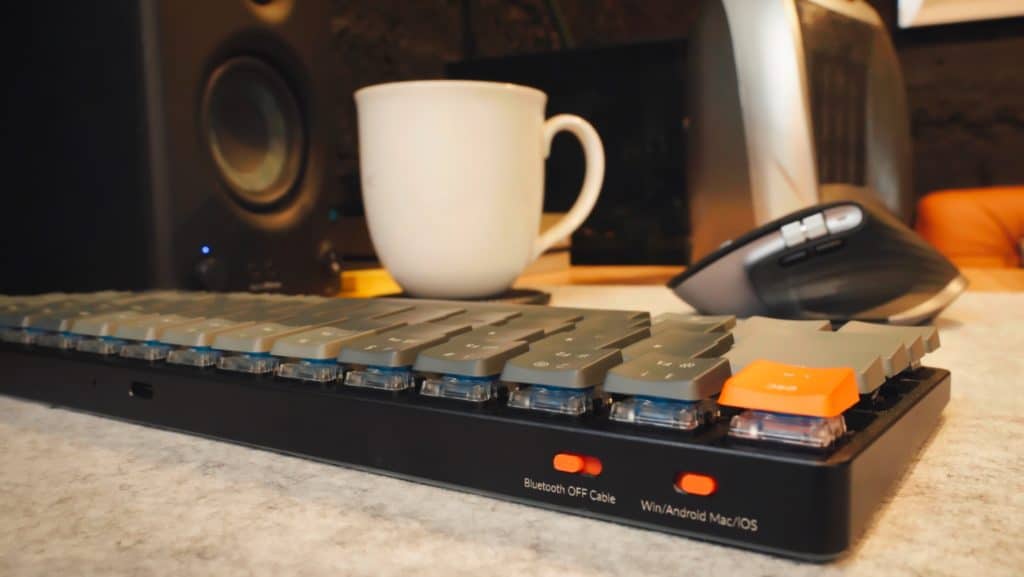 the Keychron toggle switches on my K7
You should notice that the Control, Option, and Command keys are all functioning correctly. If the control & command keys are BACKWARDS, you didn’t toggle the operating system switch currently.
Do you have other mechanical keyboards? Check this guide: Can a mechanical keyboard work on a Mac? Full Setup Guide
Troubleshooting tips if you experience any problems connecting or using your Keychron Keyboard
If you’re having trouble connecting your Keychron to a Mac, or if some keys aren’t working correctly, here are a few troubleshooting tips:
Reset your external keyboard for your Mac
When you first connect your Keychron to your machine, you should see a popup assistant asking you to press a few keys to determine the layout, etc.
But you can also delete your keyboard preferences file to start from scratch.
Here’s what you do:
- Disconnect the keyboard
- Head to Finder and click the hard drive icon (under Devices)
- Head to the Library folder, and then the Preferences folder
- Click on the file named com.apple.keyboardtype.plist and drag that into the trash!
- Empty your trash
- Reconnect the keyboard via USB
You should see the setup assistant again! Follow the instructions and you should be good to go.
Reach out to Keychron support or post on Reddit
If you’re still having issues connecting the Keychron to your Mac, you might either…
- Head to Keychron’s website and contact their support team.
- Post on the r/mk subreddit with your issue (be detailed)
Mechanical Keyboard Tips for Mac Users
There are a few other tips and tricks to making the most out of your mechanical keyboard on a Mac:
- Via (some Keychrons support Via, some don’t)
- Keyboard Maestro: A SLICK hotkey & macro tool that’s cheap and flexible!
How to use Via with your Keychron:
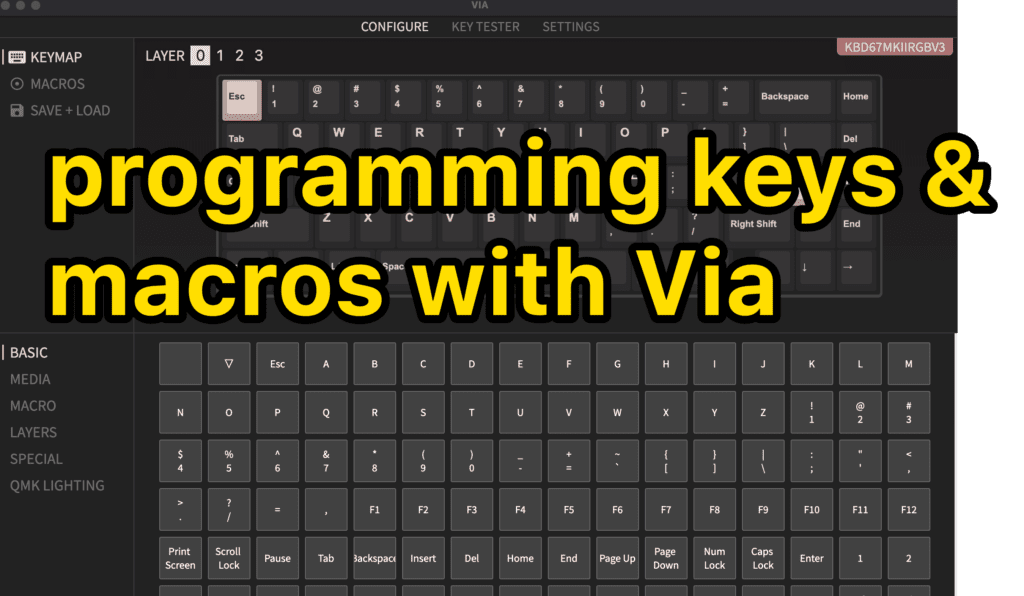
First, double-check that your Keychron supports Via! Most of the current lineup does, but some of the older models might not.
At the time of this writing, only the Keychron Q1 and Q2 support via!
- Download and install the Via software (it’s free)
- Connect your Keychron keyboard
- The software SHOULD automatically detect your keyboard, and you can start making changes immediately.
If that doesn’t work for any reason, you might head to your keyboard product page and download the specific JSON file (and then install it in Via).
I’ve never had to do that, but one never knows.
Hopefully, Keychron adds Via support to other models going forward!
Mac users should also check out Keyboard Maestro!
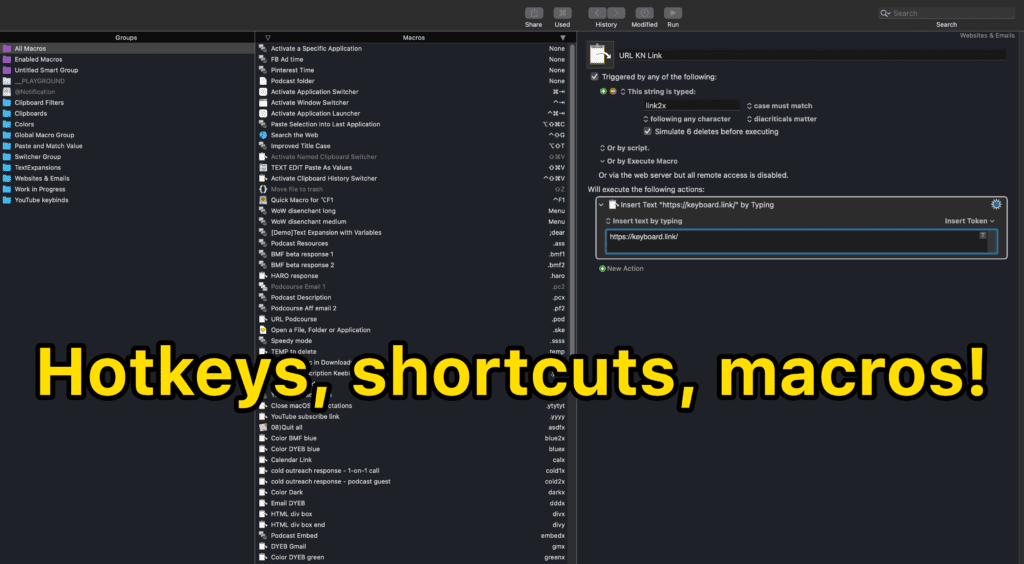
Keyboard Maestro is a GAME-CHANGER for any Mac user, really, but especially if you’re constantly switching mechanical keyboards, etc.
It does cost about $30-40 (one time, not a subscription), but it’s totally worth it.
You can use Keyboard Maestro to…
- Set up custom keybinds for ANY key on your keyboard
- Create custom macros
- Change modifier keys
- SO much more
It’s an insanely powerful tool. We highly recommend it (then check out some tutorial videos on YouTube).
My favorite Keychron Keyboards:
Nearly all Keychron keyboards will have the following:
- Wired or Wireless capability
- Hot-swappable (some models have a non-hot swappable version available for less money)
- RGB backlighting (some models don’t have this for less money)
- MacOS or Windows swapping
- Pairs with up to 3 devices
- Comes with Mac and Windows modifier keycaps
Here are the favorites of mine:
Keychron K2
The Keychron Q1 and Q2 are both “custom mechanical keyboards,” meaning you can purchase them “barebones” with no switches or keycaps.
They also have a rotary knob! (for volume, but you can program the knob for anything you like with a bit of QMK knowledge).
It’s a bit pricier than other Keychrons, but it offers a premium typing & gaming experience. (it competes with the GMMK Pro for sure)
Other Mac-friendly keyboards
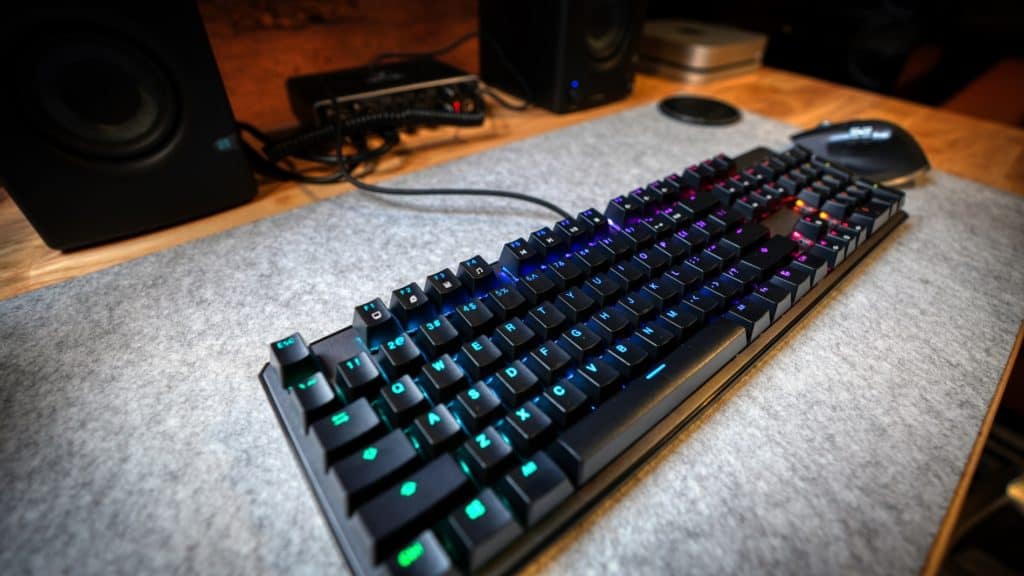 My Tecware Phantom.
Though we love everything that Keychron puts out, there are several other keyboards that work great for Macs too!
Here’s some related reading:
- Do Ducky keyboards work on Mac?
- Do Redragon keyboards work on Mac?
- Does GMMK work on Mac?
- Does the Anne Pro 2 work on Mac?
- Do Das Mechanical Keyboards work with Mac?
And here are some other keyboards that work particularly well with Apple devices:
- Anne Pro 2
- Budget Pick: RK84 (this has a Fn keybind to switch between macOS and Windows)
- Das Keyboard 4 - the feature-packed fancy keyboard (great for gaming).
Want to see our full list? Read this post: The 7 Best Mechanical Keyboards for Mac.
Happy clacking, Mac friends!